
Nov 6, 2025
Updated
Written by Gregory Shein, CEO & Founder
Managing Retainers for Creative Studios
A worked monthly retainer: record scope, track delivery, review the hour allowance and prepare a fixed-fee invoice in Corcava.
A design retainer needs two records that answer different questions: what the client agreed to buy, and what your team actually delivered. Recording eight hours does not decide whether the client owes for eight hours, a monthly fee or an approved extra. The agreement decides that.
This walkthrough follows Northstar September design retainer (Demo), a fictional project entered in Corcava. It uses a $1,500 monthly fee, 12 included delivery hours and eight hours of recorded work. The screenshots show saved application records. Allowance balances and contribution calculations below are manual calculations, not native retainer dashboard fields.
1. Write the monthly scope before work starts
For this example, the September 1–30, 2026 period covers campaign graphics, layout revisions and delivery review. New branding, copywriting and rush requests are excluded. Unused hours do not roll over; extra work needs separate approval. These are example operating terms, not a contract template.
Keep the following details together for each period:
| Agreement field | Northstar example |
|---|---|
| Client and period | Northstar Studio (Demo), September 2026 |
| Fixed monthly fee | $1,500 USD |
| Included delivery allowance | 12 hours |
| Included work | Campaign graphics, layout revisions, delivery review |
| Exclusions | New branding, copywriting, rush requests |
| Unused allowance | No rollover in this example |
| Extra work | Separate approval before starting |
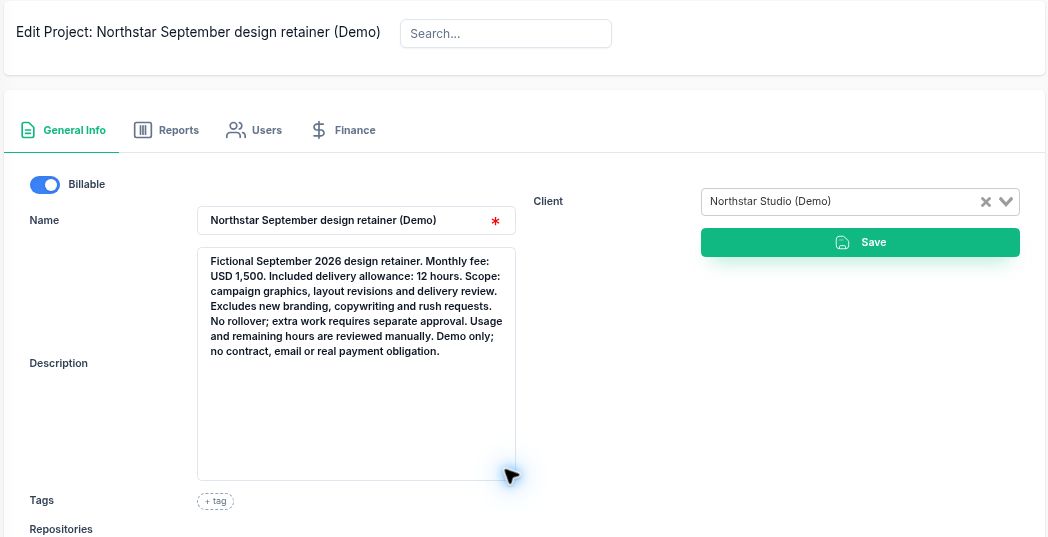
Create a project linked to the client and put the period, fee, allowance and scope in its description. The description preserves the reference terms; it does not configure an automatic allowance or enforce the agreement.
Saved project scope. The 12-hour allowance is written in the description and reviewed manually.
A separate project per month makes this example easy to filter. If you keep one ongoing retainer project instead, use explicit date ranges and check that work is assigned to the correct period.
2. Set the delivery cost used in your review
The demo project has one team member with a $50/hour cost rate, effective September 1. Its hourly bill rate is blank because the commercial example uses a monthly fee. This is a reporting setup, not an automatic fixed-fee billing mode.
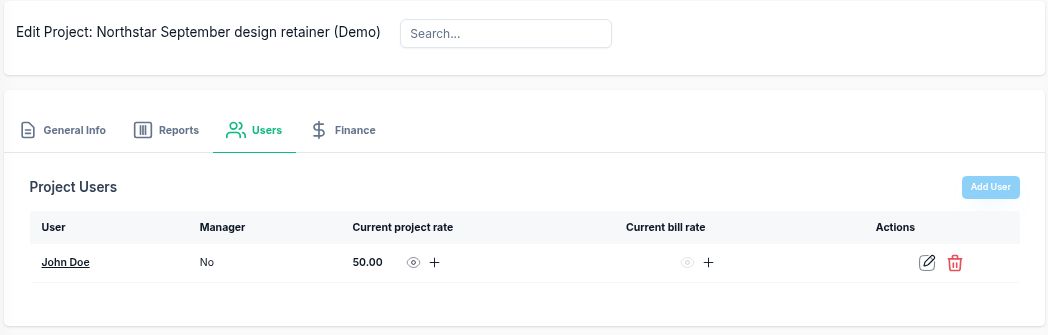
The project rate supports the labor-cost calculation. A blank bill rate does not create the $1,500 invoice or prevent every invoice-generation path from including this time.
For a real review, use the appropriate cost basis for your team and period. Decide whether it includes only pay or additional employment costs. Label that choice consistently; the report cannot supply costs you have not recorded.
3. Record the work included in the fee
The demo contains one manual eight-hour entry dated September 28. Its note identifies campaign graphics, layout revisions and handoff review, and states that this work is included in the monthly fee.

The saved entry records delivery effort. It is not an additional hourly charge.
Use the timer or manual entries according to your team's process. Include review and revision time when it belongs to the agreed allowance. Separate out-of-scope requests before the work starts, with an owner, estimate and approval record. Recording an entry does not establish that the client approved an extra charge.
4. Review the full period in Time Reports
Filter Time Reports to the retainer project and September 1–30. The saved example shows 08h 00m 00s, Total Spent $400 and Billed amount $0.
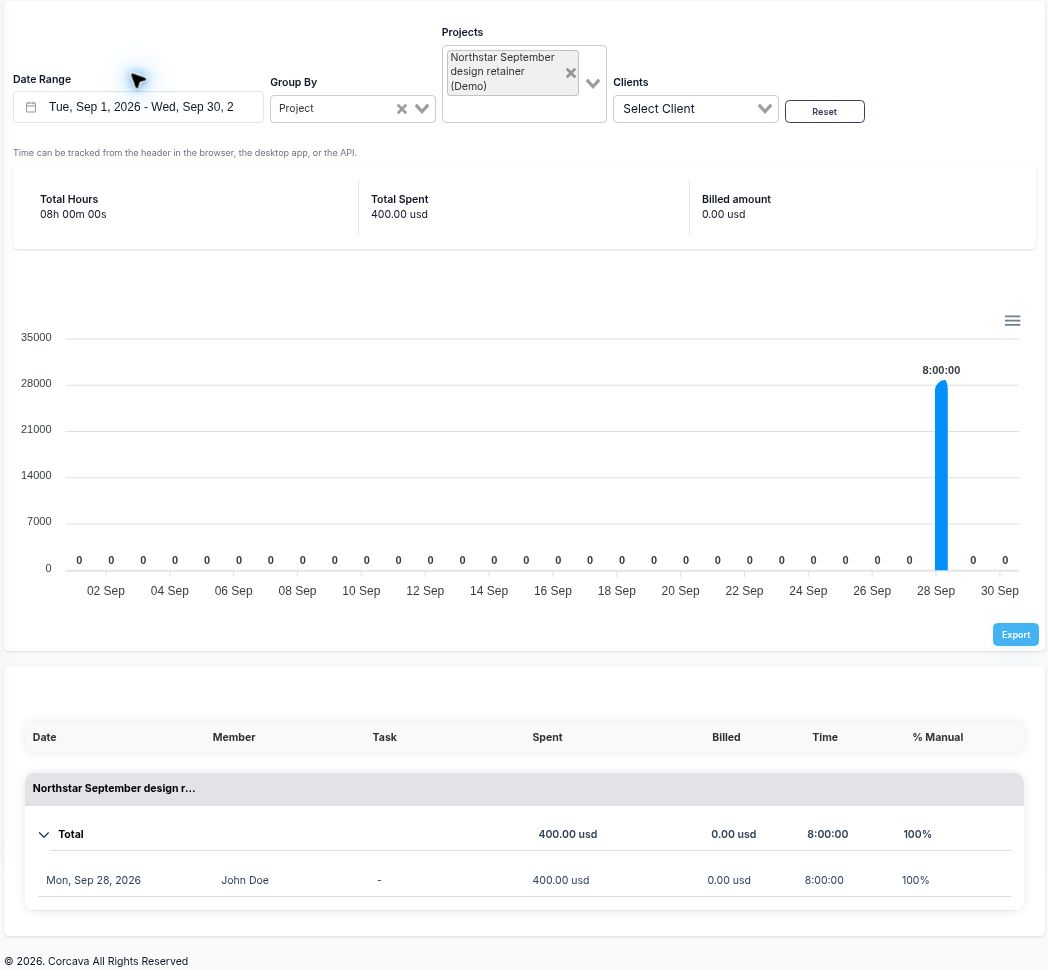
Billed amount here comes from time and rates. It is not the monthly-fee invoice total or cash received.
The $400 labor cost is consistent with eight hours at $50/hour. The $0 billed figure is consistent with this project's empty hourly bill rate. Compare the time report with the invoice separately; do not interpret this report as saying that the monthly fee is zero.
Use a retainer tracker worksheet for the allowance review:
| Manual review | Calculation | Result |
|---|---|---|
| Allowance used | 8 ÷ 12 × 100 | 66.7% |
| Unused allowance | 12 − 8 | 4 hours |
| Fee per recorded hour | $1,500 ÷ 8 | $187.50/hour |
| Recorded labor cost | 8 × $50 | $400 |
| Modeled contribution | $1,500 − $400 | $1,100 |
| Modeled contribution margin | $1,100 ÷ $1,500 × 100 | 73.3% |
These are fee-based planning calculations before overhead, tax and any other unrecorded costs. They are not recognized accounting profit or cash profit. The invoice below is still a draft with $0 paid. The four-hour allowance balance also says nothing about unfinished work: estimate remaining commitments before accepting more requests.
If further work changes the recorded hours or costs, redo the calculation. The retainer profitability calculator can support a manual scenario review, with the same need to choose a consistent cost basis.
5. Prepare the monthly fee invoice separately
Create an invoice for the client, add one manual line for the September design retainer, choose Pieces, set quantity 1 and unit price $1,500, and identify the covered period in the notes. Check taxes, discounts, issue date and due date against your own agreement before sending.
The demo was saved using Save as draft. It has one $1,500 line, Draft status and $0 paid. No invoice email or payment was sent.
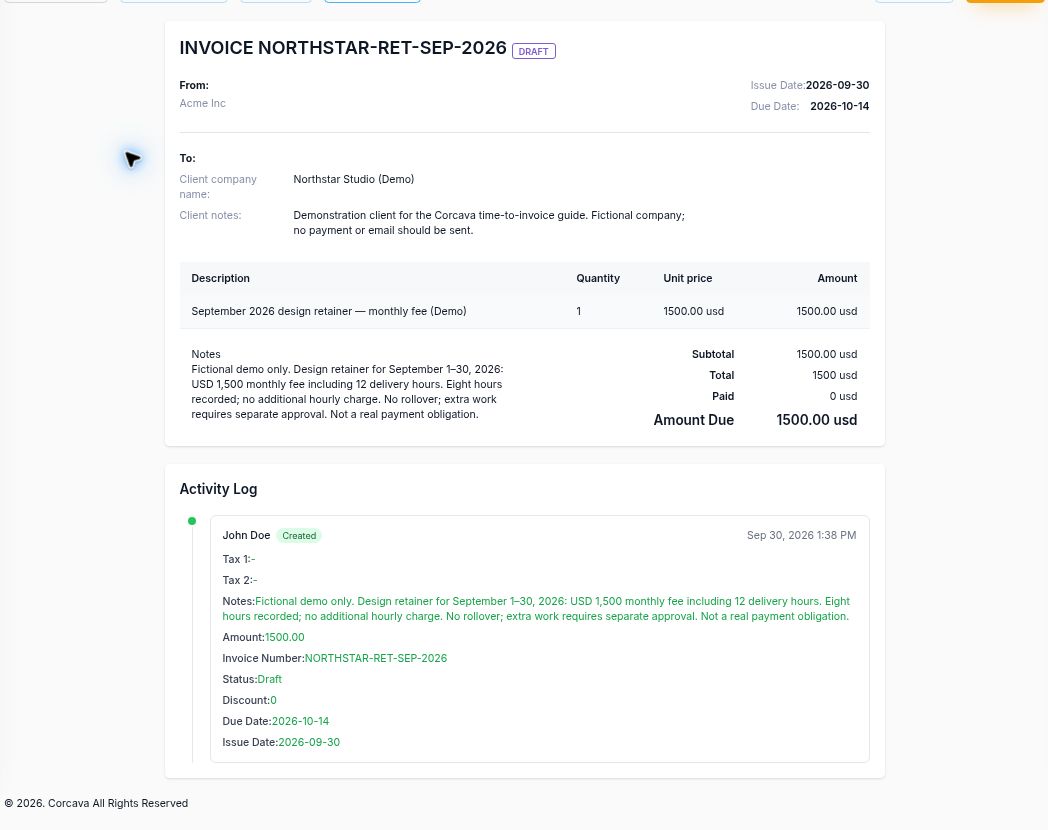
The monthly fee is entered explicitly. The invoice does not add eight hourly charges to the retainer.
A manual fee line does not automatically link or consume the recorded time. Those entries can still appear as uninvoiced. Reconcile the period before generating any later invoice so included work is not charged again. Do not assume the project Billable setting or an empty hourly bill rate supplies that reconciliation.
6. Treat recurring settings as a separate workflow
The client editor includes invoice-generation settings, including a fixed-price field and frequency. In the implementation checked for this walkthrough, the scheduled generator builds invoices from recorded time and associated expense line items; it does not repeat the configured fixed retainer fee. Monthly processing is scheduled for the first Monday of the month, not necessarily the first calendar day.
The generator can queue an email when the client has an email address, even though the created invoice is Draft. Its generation path does not honor the displayed delay-sending or invoice-send preferences. We did not enable or execute recurring generation for this example.
Use the manual monthly-fee workflow above for this retainer. Read Recurring Invoices before treating the settings as a billing automation. There is no verified automatic allowance deduction, rollover or overage billing in this walkthrough.
Close the month with a short review
Review recorded work, remaining commitments and any separately approved extras. Check the draft invoice against the agreement, then follow your normal review and sending process. Track its actual payment status separately from the fee-based calculation.
For Northstar, the review is simple: eight recorded hours, four hours of unused allowance under the example terms, $400 recorded labor cost and a $1,500 draft invoice. Next month's scope and allowance need their own review; unused time does not automatically transfer.
For related workflows, compare hourly, fixed-price and retainer clients, review what a retainer fee covers, or follow the project profitability example.