Oct 13, 2025
Updated
Written by Gregory Shein, CEO & Founder
How to Accept Crypto Payments on Invoices (BTC, ETH, USDT): A Step-by-Step Guide
Connect a payment provider, share a payable invoice, and reconcile the confirmed payment. This guide shows Corcava's ATLOS setup screen and explains what to check before a client pays.
Start with an invoice, then choose the payment method
A crypto payment still needs a clear invoice: who is paying, what was delivered, the amount, the invoice currency, and the due date. The payment provider supplies the checkout where the client chooses an available cryptocurrency and network.
Keep these two amounts separate:
| Invoice record | Crypto checkout |
|---|---|
| The amount owed in the invoice currency, such as USD | The amount of BTC, ETH, USDT, or another supported asset requested by the provider |
| Used to track the invoice balance | Quoted for a specific asset and blockchain network |
| Updated when a payment is recorded | Subject to the provider's current quote, fees, and confirmation requirements |
For example, a $750 invoice with $250 already recorded as paid has $500 outstanding. That does not mean the client should send 500 units of any cryptocurrency. They should follow the amount and network displayed in the current checkout.
BTC, ETH, and USDT availability depends on the provider and its checkout. Before offering any of them to a client, check the provider's current supported assets, networks, account requirements, and fees.
1. Connect ATLOS in Corcava
In Corcava, open Settings → Integrations → Payments. Open the ATLOS card, enter the Platform id and Key supplied for your provider account, then save the integration.
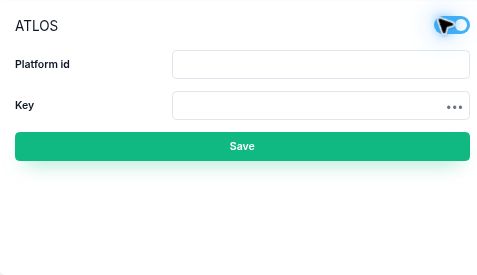
Actual Corcava settings screen. The fields are intentionally empty; this capture shows the setup form, not a connected merchant account.
Keep the provider key private. Use the credentials for the intended merchant account and check its setup requirements before making payment links available to clients.
Corcava also has a PassimPay integration. The instructions here describe ATLOS; another provider has its own configuration and checkout behavior. See the ATLOS invoice documentation for its hosted payment-link workflow.
2. Check the client and invoice
Open the client's settings and check that Crypto Payments is enabled. If the option is unavailable, ask your workspace administrator to check the payment integration.
Prepare the invoice as you normally would:
- Choose the correct client, invoice currency, line items, and due date.
- Check any payments already recorded against it.
- Use a payable invoice in Sent or Open status with a positive outstanding balance.
- Confirm the payment integration is active and configured.
An existing checkout with another provider, or a payment awaiting review, can prevent a new ATLOS link from being generated. Resolve that state before asking the client to try another payment.
If you need help with the invoice itself, start with the invoice tracking walkthrough. It shows how a real Corcava invoice moves from sent to partially paid and fully paid.
3. Share the invoice and open the crypto checkout
Share the invoice's client-facing link. On an eligible invoice, the ATLOS controls are labelled:
- Generate Crypto Invoice · ATLOS — creates the provider payment link.
- Pay with Crypto · ATLOS — opens that link so the client can follow the provider's payment instructions.
The checkout is hosted by ATLOS. Its available coins, network choices, quoted amounts, and payment instructions belong to the provider's current checkout, rather than to a fixed list in Corcava.
Before sending funds, the client should check:
- Asset and network: the wallet must use the exact combination requested by the checkout. A token name alone is not enough.
- Amount and validity: follow the current quote, including any expiry or instructions about network fees.
- Destination: use the address or payment instructions shown by that checkout.
- Payment status: a transfer sent from a wallet still needs the provider's confirmation.
The screenshots in this guide show Corcava's setup and invoice records. They do not show a completed live crypto transaction.
4. Reconcile the confirmed payment
For an accepted ATLOS confirmation, Corcava records an invoice payment and updates the balance. A partial payment can leave an amount outstanding. A failed, pending, or unexpected payment should be investigated rather than treated as a paid invoice.
The invoice's Paid, Amount Due, and Payment history fields help you check the result:
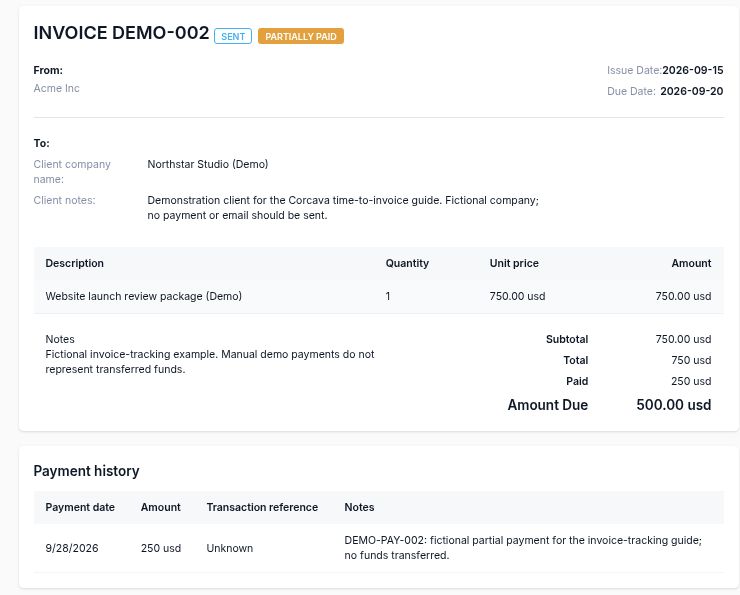
Real Corcava invoice with fictional demo data: $750 total, a manually recorded $250 payment, and $500 due. This illustrates the balance and history display; it is not proof of a crypto transfer.
Keep the provider's transaction record alongside the invoice record. If the amounts or status do not agree, check the provider's transaction details before recording another payment manually. Otherwise, you could count the same payment twice.
A currency mismatch, an old payment link, or a payment that needs review can require attention. Corcava does not apply more than the outstanding invoice balance as an invoice payment; an overpayment still needs reconciliation with the provider.
A practical first-invoice checklist
Before giving a client the link, make sure you can answer these questions:
| Check | What to confirm |
|---|---|
| Invoice | Correct client, currency, total, due date, and outstanding balance |
| Provider | Active integration with the intended merchant credentials |
| Client | Crypto Payments enabled |
| Checkout | Requested coin and network are available in the current provider checkout |
| Instructions | Client knows to follow the checkout's amount, network, and validity |
| Reconciliation | Someone will check the confirmed payment against the invoice balance |
Provider fees, network fees, exchange rates, and confirmation times vary. Compare the current total cost for your payment rather than assuming crypto is always cheaper or faster.
Frequently asked questions
Can a client pay a USD invoice with USDT?
Only when the configured provider offers an appropriate USDT checkout for that invoice. The invoice currency and the payment asset are separate. Follow the provider's quoted amount and exact network; do not assume a fixed one-to-one payment amount.
Does Corcava confirm the payment automatically?
The ATLOS integration processes accepted provider confirmations and records invoice payments. A pending transfer, a failed confirmation, or a transaction flagged for review is not the same as a reconciled payment. Check the invoice balance and the provider's record.
What if the crypto payment button is missing?
Check the client setting, the integration credentials and active state, the invoice status, and whether there is an outstanding balance. Also check whether an existing checkout or payment review is blocking another link.
Is the invoice history a complete crypto accounting report?
It is a record of invoice payments. Keep the provider's records for fees, assets, networks, and transaction references as needed for your own reconciliation and bookkeeping.
Put the invoice workflow in place
See Corcava invoicing for creating and managing client invoices, or follow the invoice tracking walkthrough to see the balance and payment history with a worked example.
Ready to create your own? Create an invoice in Corcava.