Client portal for project and billing access
Updated
Give clients a place to consult their project records and invoices. Set up the intended account, check its project and client associations, and pair shared records with a clear delivery update.
No credit card required
Three parts of the client view
Project boards
The viewer's assigned projects determine their board list. Check both the records they can open and the editing or commenting actions available to them.
Time reports
Reports offer date, project and member filters for associated clients. Ordinary client views hide staff financial totals such as Spent and Billed.
Invoice lists
Client invoice lists show amounts, paid balances, due dates and statuses for associated clients. The Open filter includes Draft and Sent invoices.
Project assignments and client associations are separate. A client's report project list can be broader than their assigned boards, so review each area rather than checking only the dashboard.
Set up access deliberately
- Open Users → Add viewer → Create viewer.
- Select the intended client, review the email and role, and check the selected projects. Copy from client can populate details and add projects; review the final selection.
- Agree what the person should be able to view or change. A viewer role is not a guarantee of strictly read-only access.
- When ready to invite, save the form. Saving sends an invitation email; it is not a preview of the recipient's screen.
- Verify the accepted account's boards, reports, invoices and available actions against the agreed access list.
Custom-domain setup is available through whitelabel settings. Treat branding and access as separate checks: a branded address does not establish which records an account can open.
One client-facing invoice example
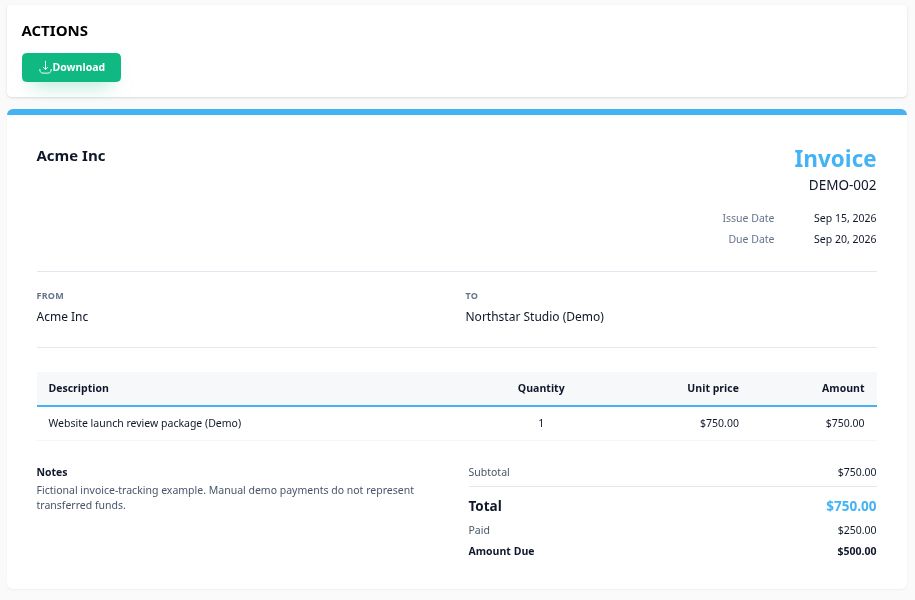
This public invoice page uses the fictional Northstar Studio demonstration. It shows invoice DEMO-002 with a $750 total, $250 recorded paid and $500 due. The recorded demo payment is illustrative; it does not represent funds transferred.
See invoicing for billing workflows. A public link and a signed-in account are different access methods; check the method you intend to share.
Keep a short client update alongside the records
For the Northstar website launch, the 28 September 2026 snapshot has four of six baseline tasks complete: 67% by task count. Test enquiry form remains due 2 October and Approve launch remains due 9 October.
The separate CR-001 proposal adds newsletter signup for 4 hours × $125 = $500. Its proposed 12 October launch date applies only after approval; the current baseline remains 9 October. The requested decision date is 2 October.
A project owner prepares this interpretation and shares it through the agreed channel. A task percentage does not calculate delivery risk or establish client acceptance. Use the weekly status report template and the reporting cadence guide.
Check what you share
- Viewer actions: assigned viewers can have project and task change or comment actions. Confirm the requirements for the engagement.
- Draft invoices: review their contents before granting client access; Draft status does not make an invoice private.
- Comments and files: do not assume a label such as “internal” restricts visibility.
- Exported reports: inspect staff export columns before sharing. They can include financial fields hidden in a client report screen.
- Approvals: keep the accepted scope and version in the agreed decision record. A completed task is not a general client-signoff record.
The client visibility guide turns these checks into a practical sharing policy.
Client portal questions
What is a client portal in Corcava?
A signed-in client area with project boards, reports and invoice lists. The available records and actions depend on the account role, assigned projects and associated clients.
Is viewer access read-only?
Do not assume so. Assigned viewers can have project and task editing or commenting actions. Check the intended account against the access requirements for the engagement.
Can a client see draft invoices?
Yes. The client-portal Open invoice filter includes Draft and Sent invoices for associated clients. Do not use Draft status as a privacy control.
Does a public invoice link show the full client portal?
No. It shows a particular invoice. A signed-in portal account is configured separately and can expose a different set of records and actions.
How should I handle scope approval?
Record approval against the specific scope, price and date proposal. Corcava estimates support version-specific client acceptance links; tasks and reports are not general-purpose client approval workflows. Update the existing project baseline separately after approval.
Connect delivery, reporting and billing
Use project records to prepare a clear update, give clients the access they need and keep each decision connected to the agreed work.
Start free trial