Visual deal pipeline management
Updated
Track opportunity value and stage, keep contact context nearby, and follow an agreed estimate into delivery. Each commercial decision and delivery action stays explicit.
Give each opportunity a clear next step
Configurable stages
Use sales boards and editable columns for your qualification and proposal process. Stage names belong to your pipeline; review the deal before moving it.
Deal context
Record the name, amount, description and attachments. Create the deal from a contact's detail page to preserve that contact link.
Follow-through
Keep qualification notes and next-action tasks with the contact. Use a weekly pipeline review to decide which opportunities need attention.
Connect the deal to an estimate
Open Sales documents → Create estimate on the deal. Check the estimate's Client, Contact and Deal selections, then enter the deliverable lines, prices, effort estimates and terms. A deal amount is not a completed estimate.
A client acceptance link records a decision against a specific estimate version. Finalizing, creating a link or viewing that link does not establish acceptance. The acceptance action also leaves the deal's pipeline stage for you to update separately.
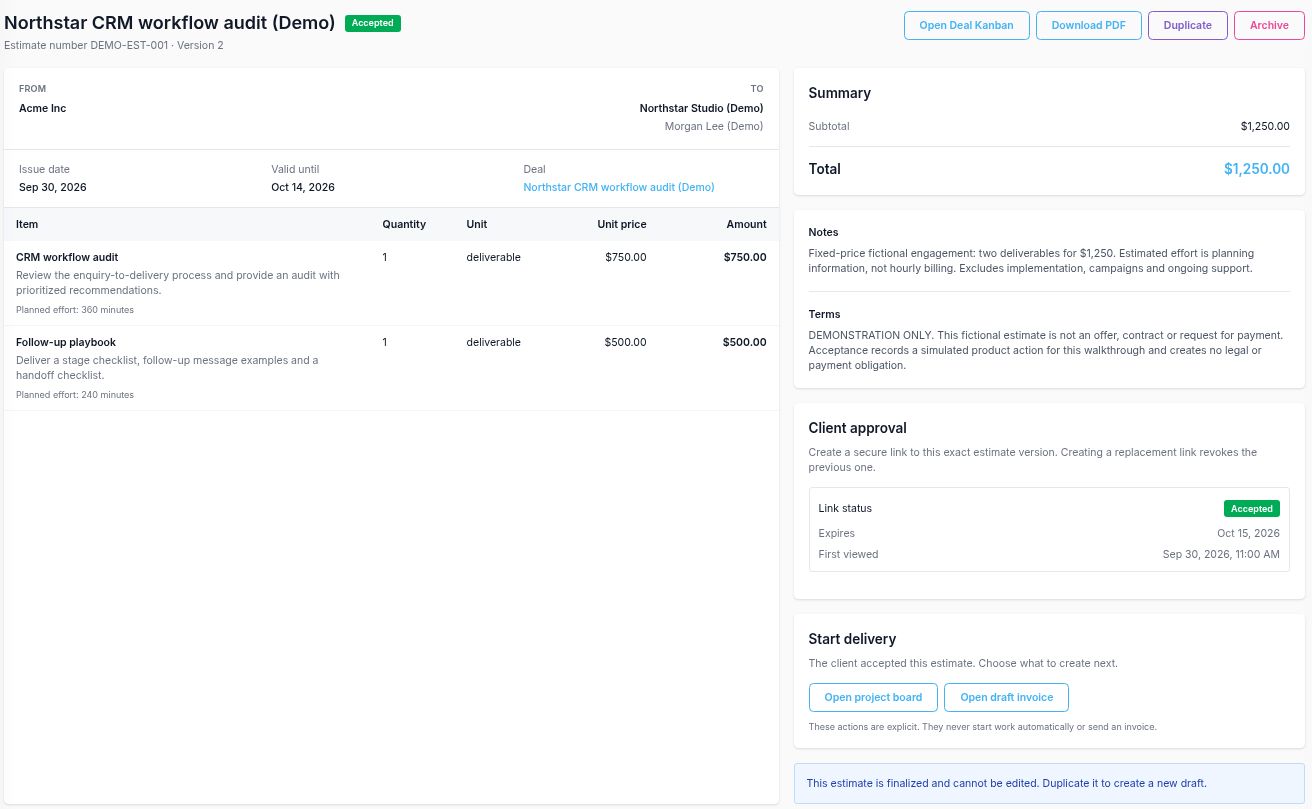
Two explicit actions after acceptance
Create project
Create a new project linked to the estimate's client, with a Delivery plan board and one task per accepted line item. The task names, descriptions and effort estimates come from those lines.
Set task dates, project members and assignees separately. Estimate prices do not configure hourly billing rates. This action does not add the work to an existing project.
Create draft invoice
Create an unsent draft from the accepted estimate's quantities and prices. Review its client, currency, dates and lines before sending.
For a fixed fee, logged time helps review delivery effort. Estimate invoicing does not consume those time entries, so do not invoice the same work again from time.
A $1,250 consultant engagement
The fictional Northstar CRM workflow audit (Demo) uses a $750 workflow audit and a $500 follow-up playbook: $1,250 total. Their planned effort is 6 hours plus 4 hours. The fee and the effort estimates are separate measures.
The lead-to-invoice walkthrough follows the linked records, the explicit project creation and the single estimate-derived draft invoice. Use CRM for consultants to evaluate the broader workflow.
Deal management questions
Can I customize the deal pipeline?
Yes. Sales boards have editable columns. Use stage names that reflect your sales process and review each opportunity before moving it; a stage is not proof of estimate acceptance.
Does an accepted estimate move the deal stage?
No. Estimate acceptance records the accepted version and activity on the linked deal. Update the deal stage separately.
How does an estimate become delivery work?
For an accepted estimate, use Create project. This creates a new project and Delivery plan board with one task per accepted line item. Line descriptions and effort estimates carry over; dates, members and hourly rates require separate setup.
Does acceptance automatically invoice the client?
No. Create draft invoice is a separate action using the accepted quantities and prices. Review the unsent draft before sending. For fixed-price work, use tracked time to review effort and do not invoice the same work again from time.