Boards, tasks and visual roadmaps
Project management connected to the work behind each milestone
Updated
Organize delivery on task boards, group the intended outcomes on a visual project roadmap, and check progress against the linked tasks. Keep the detailed work and the bigger picture connected.
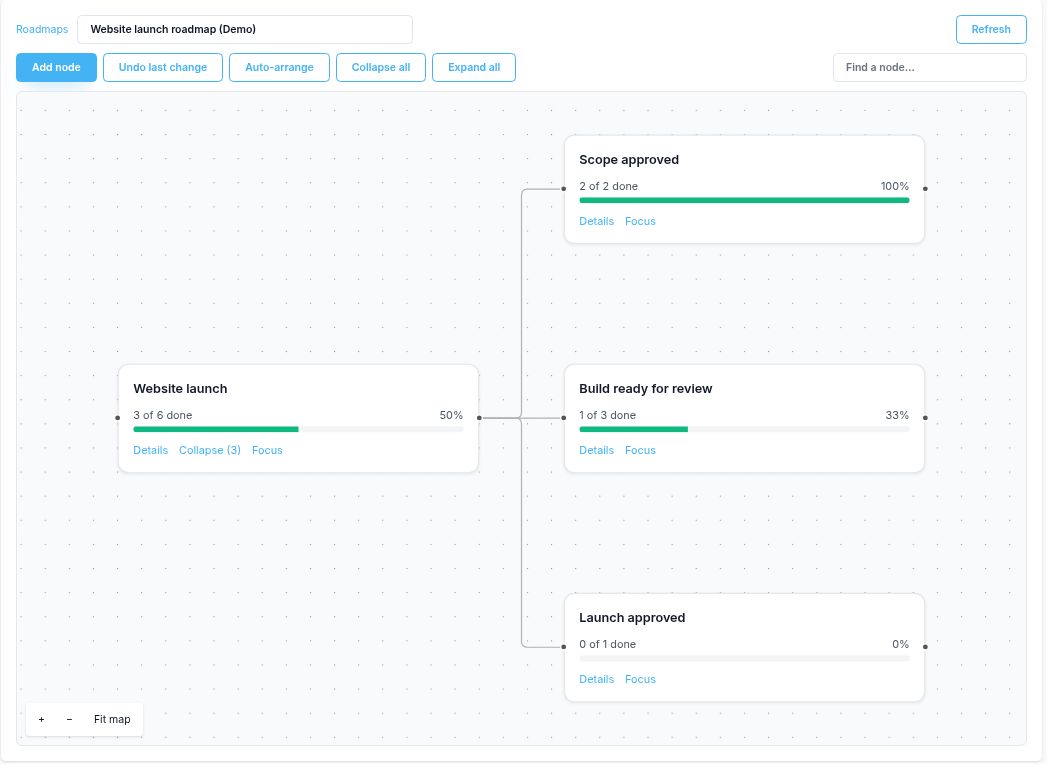
Two views of the same delivery work
Task boards for the daily work
Organize tasks in workflow columns and use labels to group related work. Keep the task detail on the board and move each item as delivery progresses.
A column configured as complete determines which linked tasks count as done on the roadmap. Naming a column “Done” alone does not establish that setting.
Roadmaps for outcomes and phases
Create a goal, add child nodes for outcomes, and link existing tasks or board labels to each node. The parent includes the distinct tasks linked throughout its branches.
A task stays on its board when you link it. You can connect work from different boards you can access without creating duplicate tasks.
Build a roadmap the team can check
1. Define the outcomes
Start with the intended result, then add branches such as Scope approved, Build ready for review, and Launch approved. Add acceptance criteria, an owner, or a target date in the description where useful.
2. Link the delivery tasks
Select existing tasks for a defined set of work, or select a board label to include matching tasks. Save the node details, then check that the linked work covers the intended outcome.
3. Review after work changes
Update the underlying tasks, then refresh the roadmap. Use the new count to discuss what remains, and update the description when the agreed scope or target changes.
The step-by-step project roadmap guide follows an actual demo from its board tasks to a completed-work update, with matching screenshots and counts.
Understand what the progress bar measures
Roadmap progress measures completed tasks as a share of the linked task set. Four completed tasks out of six display as 67%, rounded to a whole percentage.
- Each task counts once within a node's total. Linking the same task directly and through a label or child branch does not double-count it in that total.
- Parent progress uses the combined task set. It is not an average of its children's percentages.
- Labels can change the denominator. A newly tagged task can join the set and reduce the completion percentage without undoing finished work.
- Task count is not effort or schedule health. A one-hour task and a ten-hour task each count once. Review remaining effort, risks, and acceptance separately.
Counts reflect the linked tasks the viewer can access. A node with no accessible linked tasks shows No linked tasks; it is not treated as a completed outcome.
Keep a large plan readable
Focus on one branch
Collapse branches, focus on one outcome, or return to the whole map. Expand a card to read its description and preview linked tasks.
Arrange the canvas
Use Auto-arrange and Fit map, or drag cards into a layout that suits the discussion. Search for a node when the plan grows.
Keep planning notes clear
Use descriptions for target dates, owners, and acceptance notes. These are written context; they do not schedule work or move other dates automatically.
Roadmap lines show parent-child structure. This view is not a Gantt chart or a dependency scheduler.
Connect the plan to reporting and billing
Project status report
Explain milestone health, decisions, and risks alongside the linked-task count. A completion percentage needs context.
Weekly client update
Summarize the completed work, next steps, and questions for the client using the existing report template.
Time to invoice
Follow billable project work through time records, bill rates, and a reconciled draft invoice.
For the earlier sales handoff, see CRM and project management.
Frequently asked questions
How is a project roadmap different from a task board?
The board holds the delivery tasks and workflow columns. A visual roadmap groups intended outcomes in a hierarchy and links to existing tasks or labels. It provides a broader view without duplicating the tasks.
How does Corcava calculate roadmap progress?
It divides completed accessible tasks by the total distinct accessible tasks linked directly, through selected labels, or through descendant nodes. A task counts as complete when its board column is configured as complete. The result is rounded to a whole percentage.
Does the roadmap automatically schedule dates or dependencies?
No. Parent-child lines show the roadmap hierarchy. Owners, target dates, and acceptance criteria can be written in a node description, but they do not create date fields, scheduling dependencies, or automatic reminders.
What happens when I link a task label?
The node includes accessible tasks matching any of its selected board labels. That set can change as tasks gain or lose labels. A task linked more than once is counted once within the node’s total.
Where do I open Roadmaps?
Open Work → Roadmaps in a workspace where the feature is enabled. Access depends on task permissions and roadmap ownership; linked task visibility also affects the progress counts.
Can I share a public roadmap link with a client?
The roadmap view does not provide a public sharing link. Use a reviewed project status report for client communication and confirm the permitted access to any underlying project information.
Connect the plan to the tasks that deliver it
Explore boards, visual roadmaps, time tracking, and invoicing in one workspace.
Start free trialNo credit card required