
Invoice tracking and collection
How to track invoices, partial payments and overdue balances
Updated
An invoice tracker should tell you what was issued, what has been paid and what needs follow-up. Keep draft work separate from client balances, record each payment against its invoice, and use the due date to decide what is late.
These screenshots use fictional records created in Corcava. Payment entries are demonstration records: no money was transferred and no invoice email was sent. The example is reviewed as of September 28, 2026.
1. Read status and balance together
Open Finance → Invoices. The list shows the invoice total, paid amount, outstanding balance, client and status. Use the client filter or invoice search to narrow the records you are reviewing.
Corcava’s Open filter includes Draft and Sent invoices. It is not an overdue filter. Choose All when you also need to reconcile closed invoices. Summary amounts follow the selected filters.
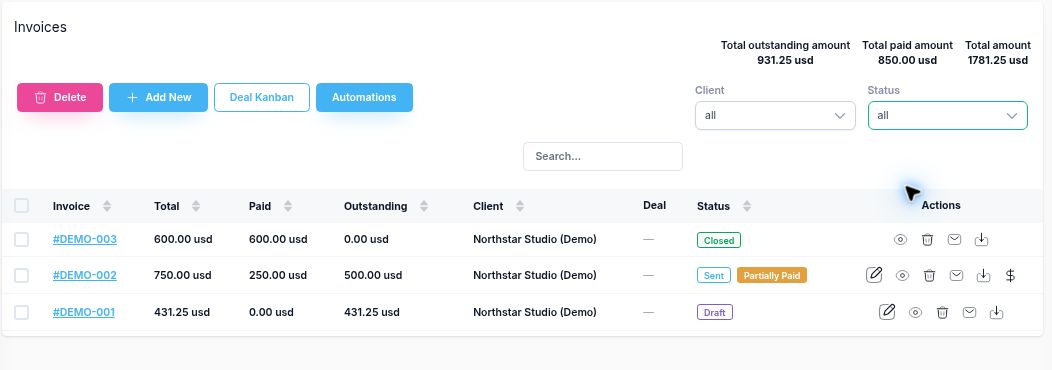
Sent is a workflow status, not delivery proof. A status change can mark an invoice Sent without emailing it. Confirm that it was actually delivered through your chosen channel before chasing payment. An accepted estimate is also separate from an invoice: converting an estimate creates a draft invoice to review.
2. Reconcile a three-invoice example
All amounts below are USD, for the fictional client Northstar Studio (Demo). DEMO-001 is the draft from our time-to-invoice walkthrough. The other two invoices show how payment records change the balance.
| Invoice | App status | Total | Paid | Outstanding | Next action |
|---|---|---|---|---|---|
| DEMO-001 | Draft | 431.25 | 0.00 | 431.25 | Review before issuing |
| DEMO-002 | Sent / Partially Paid | 750.00 | 250.00 | 500.00 | Follow up on the remaining balance |
| DEMO-003 | Closed / Paid | 600.00 | 600.00 | 0.00 | No collection follow-up |
| All records | 1,781.25 | 850.00 | 931.25 | 500.00 to collect after excluding the draft | |
Outstanding balance = invoice total − recorded payments.
For DEMO-002: 750.00 − 250.00 = 500.00. Across all three records: 1,781.25 − 850.00 = 931.25. Excluding the unissued draft leaves 931.25 − 431.25 = USD 500.00 for collection.
Do not add different currencies into one total. Keep separate trackers or currency totals. Also review canceled or manually closed invoices separately instead of treating every remaining amount in an All view as collectible.
3. Record the payment you actually received
- Confirm the receipt and identify the correct client and invoice. A payment promise is not a received payment.
- Open the Sent invoice and select Record Payment.
- Enter the Payment date and Amount Paid. Replace the prefilled balance with the smaller amount when the payment is partial.
- Add a useful reference in Notes, then save and check the revised balance.
This manual action records a payment; it does not move funds or verify a bank transfer. In our demo, recording USD 250 against USD 750 leaves the invoice Sent, adds a Partially Paid label and reduces Amount Due to USD 500.
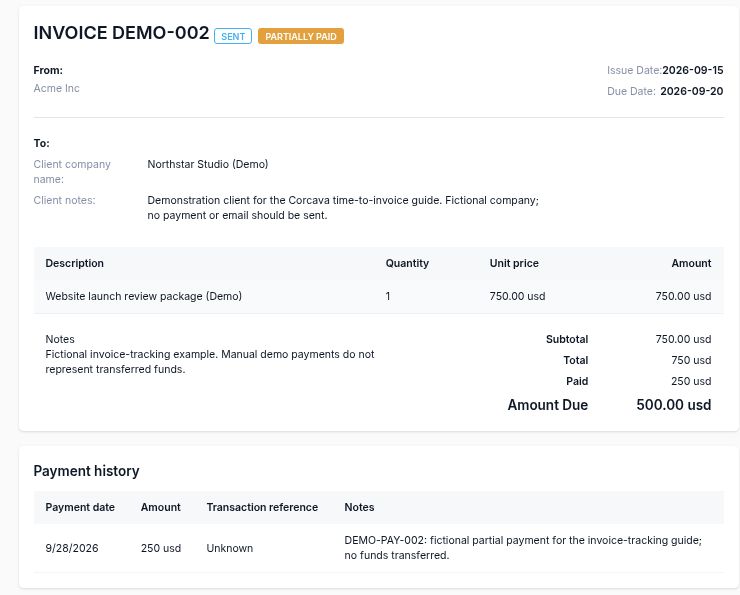
Before entering a receipt manually, check whether an enabled payment integration has already recorded it. Recording the same receipt twice would overstate the paid amount. An active gateway payment link can also prevent manual recording; reconcile its payment state first.
4. Check what the client can see
Open the invoice’s Public Link to review its client-facing document and Download option. Check the invoice number, dates, description, total, paid amount and remaining balance before sharing the link.
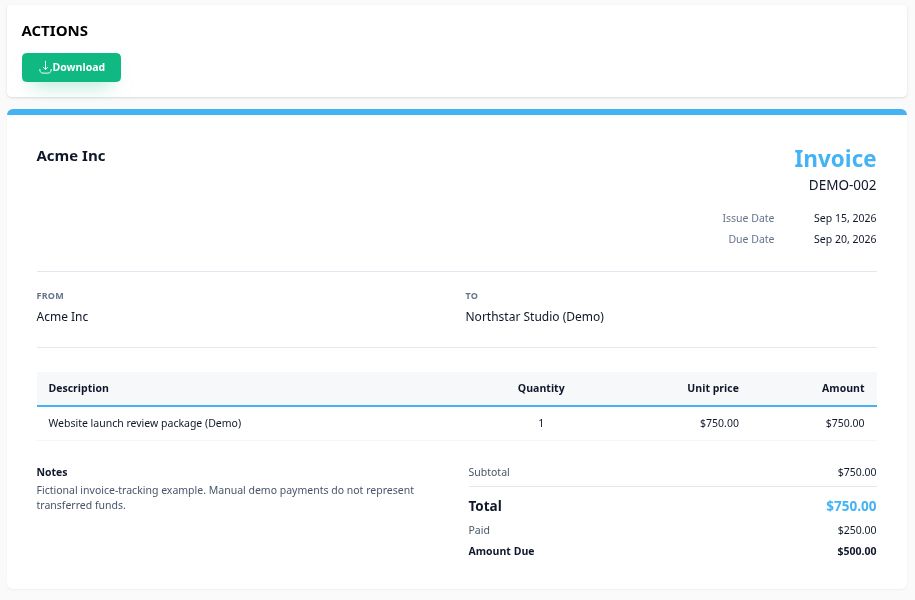
Treat the public link as a shareable invoice document: anyone with it can open the invoice. Use the intended recipient and avoid putting internal-only information into client-visible invoice notes.
5. Use the due date to choose a follow-up
For an issued invoice, an unpaid balance is overdue when its due date has passed. DEMO-002 is due September 20. At the September 28 review, its USD 500 balance is eight days overdue. The USD 250 already recorded is not part of that reminder.
The Corcava list does not have a separate Overdue status or due-date column. Open the invoice to check its due date, or maintain dates and next actions in the invoice tracker spreadsheet. Its as-of date makes the overdue calculation explicit.
- Before the due date: confirm the recipient has the invoice and any required reference or purchase order.
- After the due date: state the invoice number, remaining amount and due date, then ask for an expected payment date.
- After a partial receipt: acknowledge the amount received and request only the balance.
- If the client reports a problem: record the issue and next action so another reminder does not ignore the conversation.
Use our invoice email and reminder examples for the wording. Corcava’s Re-send action sends the invoice again; the follow-up schedule and tailored messages described here are actions you manage, not an automatic reminder sequence.
6. Confirm the balance is zero before finishing
Recording the full USD 600 payment on DEMO-003 closes it automatically. Its Paid amount is USD 600 and Amount Due is zero. Check those figures and the payment history together.
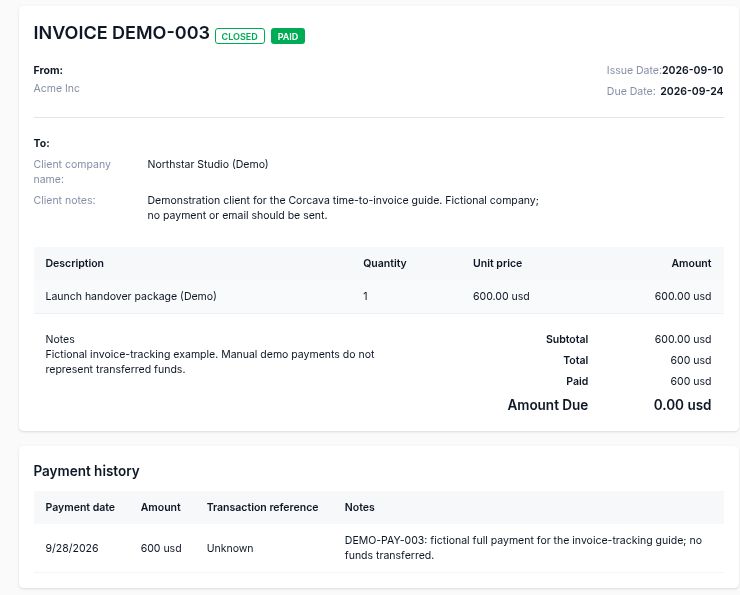
Close Invoice is not Record Payment. Manually closing an invoice does not create a receipt. If a closed invoice still has an unpaid balance, investigate the reason instead of treating it as collected revenue.
Keep the invoice and its payment records together
Use the spreadsheet for a small manual ledger, or explore Corcava’s invoicing features and CRM with invoicing to connect clients, invoices and payments.
Start free trial