One engagement, several linked records
A lead-to-invoice workflow connects a sales conversation to an agreement, delivery work and billing. It works when the next person can identify the approved scope and its source without reconstructing the conversation. Putting the records in one application helps; checking the handoffs still matters.
Our fictional engagement is Northstar CRM workflow audit (Demo), with contact Morgan Lee (Demo). The agreed example fee is $1,250 for two deliverables. The acceptance demonstration is nonbinding and does not represent real client consent. The walkthrough stops at an unsent draft invoice; it does not show a payment.
| Record | What it answers |
|---|---|
| Client and contact | Which organization is buying, and who is the person involved? |
| Deal | What opportunity are we pursuing and what happens next? |
| Estimate | Which deliverables, prices and terms have been accepted? |
| Project and board | Where will the team plan and record delivery? |
| Invoice | What amount are we preparing to bill? |
These are separate records with specific relationships. A contact is not a client login; an accepted estimate is not a completed project; recorded time is not automatically an additional amount owed.
1. Link the person to the opportunity
Open the contact and use Create Deal from that record to retain the contact association. Give the opportunity a recognizable name and record the problem, expected outcome, scope questions and next action. Use your team’s pipeline stages; the labels can differ between workspaces. Give the next action an owner and a date so another consultant can pick up the conversation without guessing what was promised.
Keep the company/client and person distinct. When you later choose Create estimate from the deal, check Client, Contact and Deal in the form. The selected contact alone is not enough to infer the correct billing client.
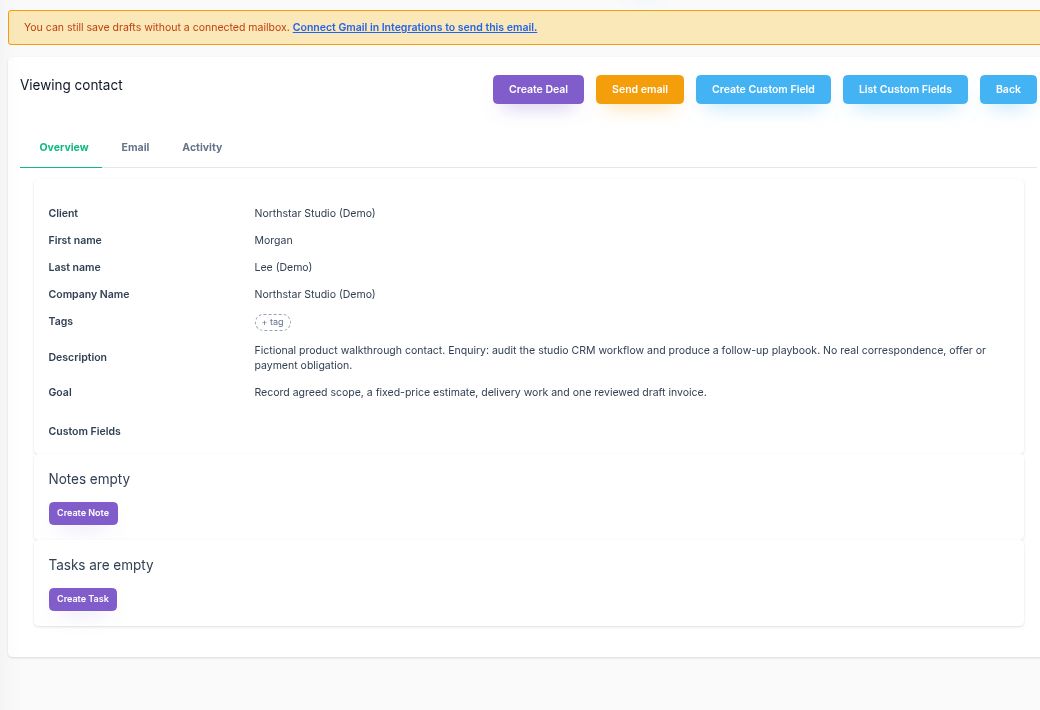
For a consultant, this is the handoff from “an interesting conversation” to “a specific engagement.” The consultant CRM page explains the surrounding pipeline and relationship-management needs.
2. Put the agreement into priced deliverables
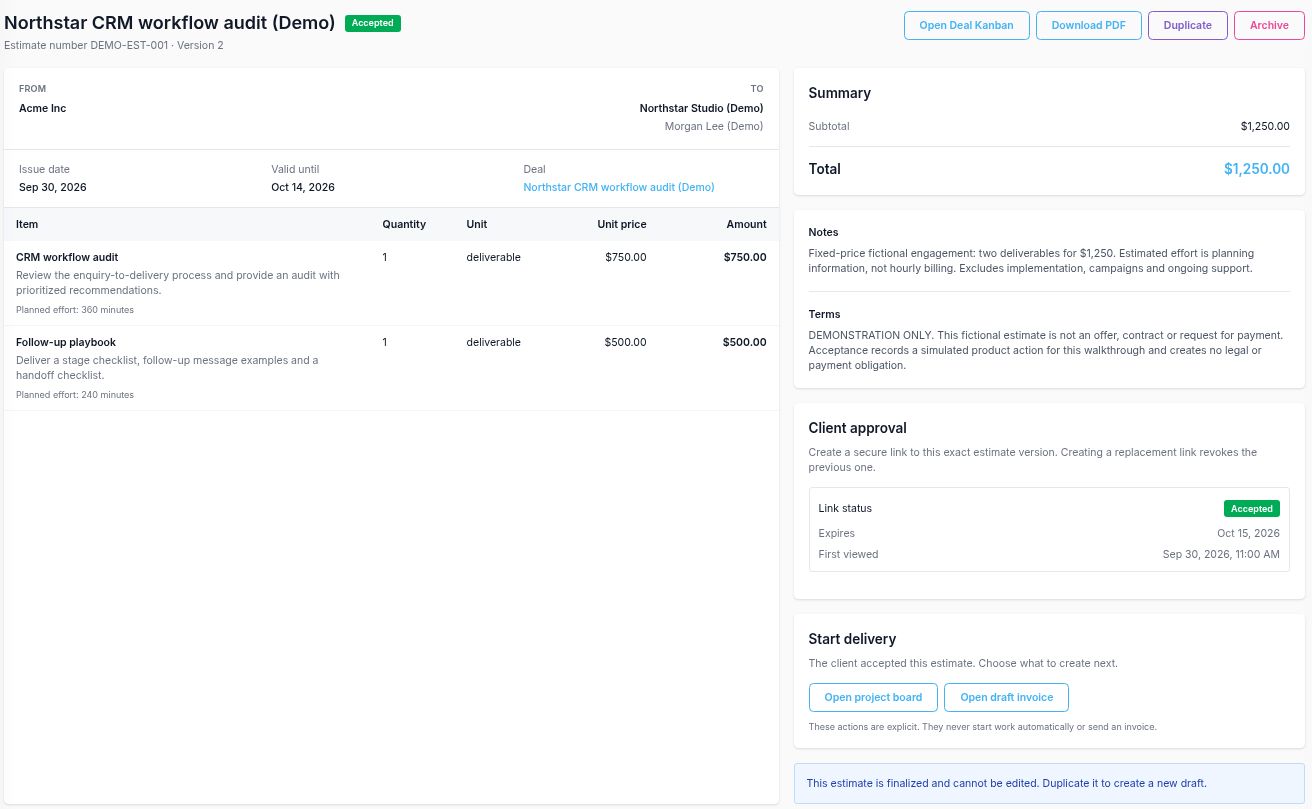
Create the estimate from the deal, verify its linked records and currency, then add a line for each deliverable. Write the expected outcome and relevant exclusions in the description and terms. Review client-visible notes before saving.
| Deliverable | Quantity | Fixed price | Effort |
|---|---|---|---|
| CRM workflow audit | 1 | $750 | 360 minutes / 6 hours |
| Follow-up playbook | 1 | $500 | 240 minutes / 4 hours |
| Total | Two deliverables | $1,250 | 10 hours planned |
The dollar amounts are fixed fees, not hourly rates. Effort (minutes) supplies a task estimate for delivery planning. It does not multiply the price or configure the project’s billing rates. Keeping those meanings separate makes the later invoice easier to check.
3. Separate preparation, sharing and acceptance
Save draft preserves an editable estimate. Finalize locks that version for the next step; it does not record client approval. To revise a finalized estimate, use Duplicate to create an editable draft and check which version you share.
Create client link produces a version-specific public estimate link. In this flow, creating the link records Sent and opening it records Viewed without itself sending an email. Neither status means a client accepted the work.
The public acceptance action requires a name and agreement to the estimate’s terms. For this fictional walkthrough, the decision is a nonbinding demonstration. In an actual engagement, obtain the client’s decision on the correct version before creating delivery or billing records. Do not treat a link view as approval.
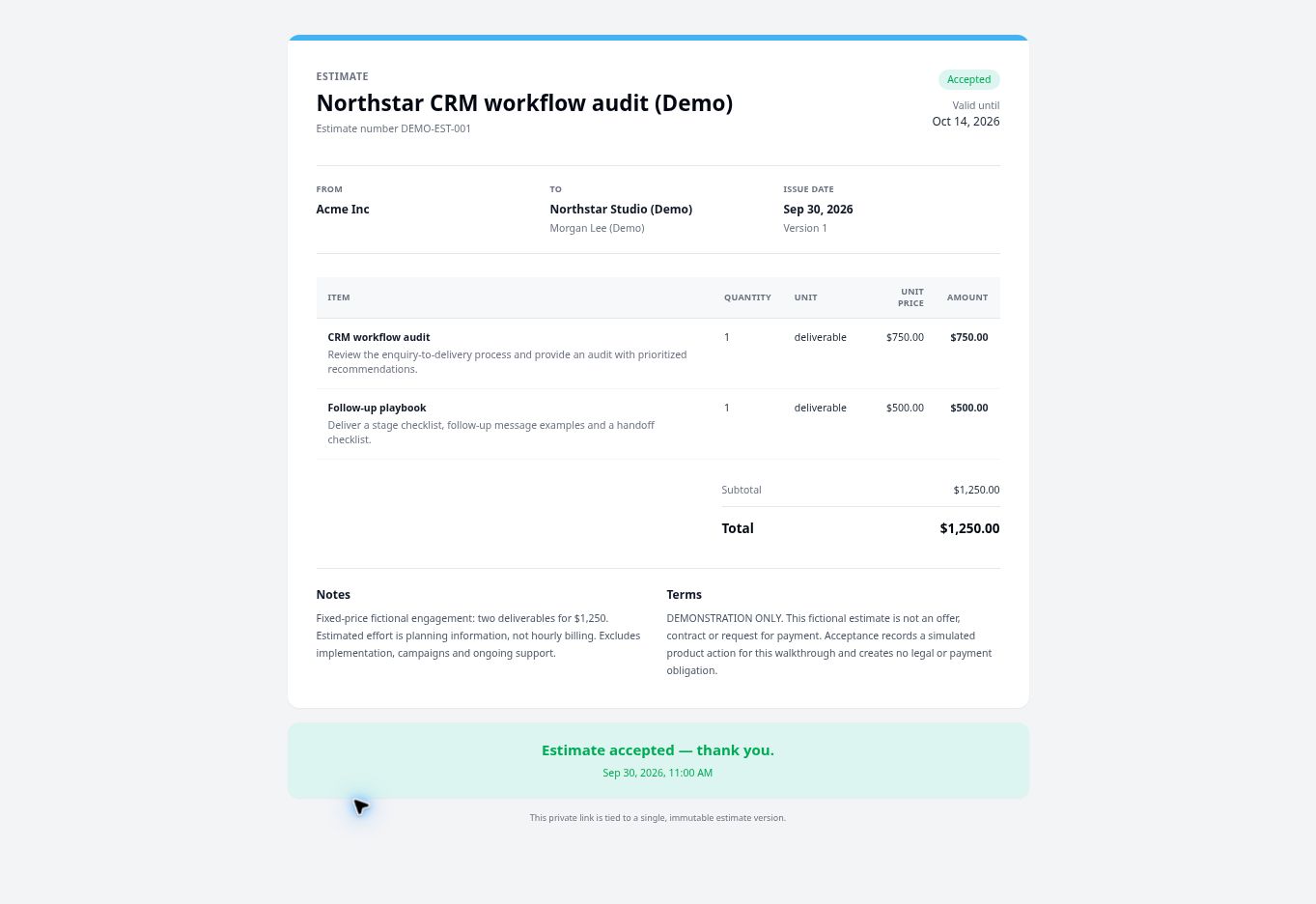
Acceptance does not automatically move the deal to another pipeline stage. Review the sales record separately so the pipeline reflects the decision your team has recorded.
4. Explicitly create the project and delivery board
On an accepted estimate, choose Create project. This action creates a new project linked to the estimate’s client, plus a Delivery plan board. It does not add the work to an existing project merely because the client is the same.
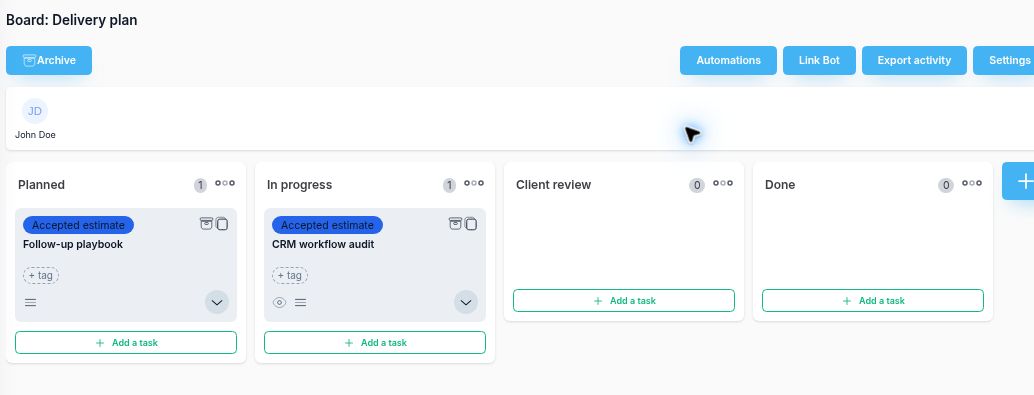
The board has Planned, In progress, Client review and Done columns. Each accepted estimate line becomes one task: CRM workflow audit and Follow-up playbook in this example. The line’s name and description carry over, and 360/240 effort minutes become 6/4 hours in the task estimates.
Open the tasks and finish the plan. Dates and assignees are not supplied by the estimate conversion; choose them separately. Confirm the completion condition, required inputs and review contact before moving work into progress.
Use the onboarding checklist to confirm inputs and access. If you need a phase-level view, the roadmap walkthrough shows how to link existing tasks without confusing task completion with client acceptance.
5. Record effort without changing the agreed fee
Open the new project’s Users → Add User action and add the person recording time. John Doe was added in this example without configuring a rate. Then use My Work → Add Time, select the project and task, and save the appropriate time span. Project creation alone does not add the creator to the project membership used by this selector.
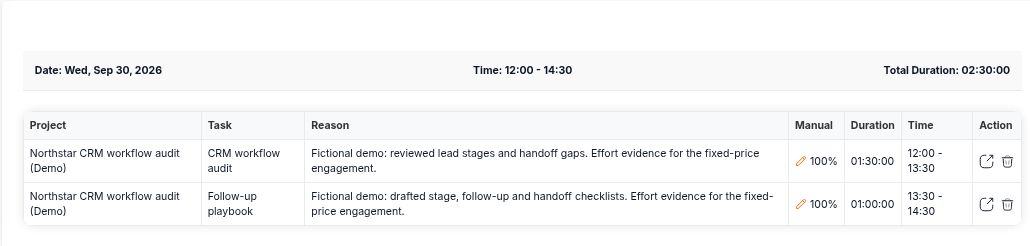
On September 30, 2026, the demo records 1.5 hours against CRM workflow audit and 1 hour against Follow-up playbook: 2.5 hours in total. Check the project, task and date range before relying on a report. This recorded effort can be compared with the 10-hour plan; it does not change the $1,250 fixed fee, prove a deliverable is accepted or authorize extra work.
Explain outcomes, blockers and decisions in a project status report. If the client requests another deliverable, assess it with a change request before expanding the baseline.
6. Create and review one estimate-derived draft invoice
Return to the accepted estimate and choose Create draft invoice. The invoice uses the accepted quantities and prices: $750 plus $500, totaling $1,250 in this example. Check that the client’s billing currency matches the estimate and review any discount or tax adjustments.
Review the invoice’s own issue and due dates. They come from invoice creation and current defaults, not the estimate’s valid-until date. A draft is a reviewable billing record; creating it does not send an invoice email or collect money.
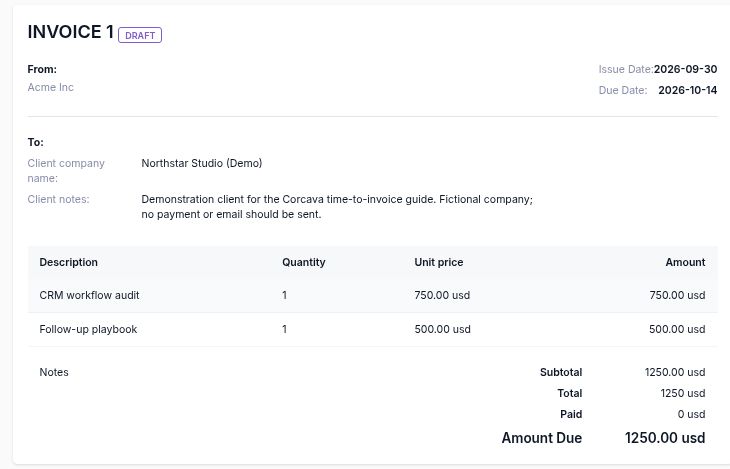
Keep one billing basis for the agreed work. Estimate conversion does not consume the tracked-time entries. Do not generate another time invoice for these same fixed-price deliverables. The estimate-derived invoice links to the estimate, deal and client; it does not directly attach the recorded intervals.
After review, sending and collection are separate steps. The invoice tracking guide covers balances, partial payments and manual follow-up. This demonstration ends with the draft, so no paid status or client receipt is implied.
Copy the sales-to-delivery checklist
SALES → DELIVERY → INVOICE
Client / contact / deal: [checked links]
Accepted estimate / version: [reference]
Scope, exclusions and completion conditions: [reference]
Billing basis: [fixed price OR hourly; describe separately agreed extras]
Accepted price and currency: [amount]
Delivery project / board: [created record]
Tasks and effort estimates checked: [yes / corrections]
Dates, assignees and project members set: [names / dates]
Inputs and access ready: [remaining actions]
Time recorded as: [effort evidence OR agreed hourly billing]
Invoice source / number: [one chosen billing source]
Invoice lines, total, currency and dates reviewed: [by whom / when]
Next client update and billing action: [owner / date]
The useful outcome is a traceable agreement, an explicit delivery plan and a checked invoice. For the broader product view, see CRM and project management together.
Frequently asked questions
Does changing a deal stage create the delivery board in this example?
The demonstrated delivery board comes from the explicit Create project action on an accepted estimate. Estimate acceptance, pipeline stage updates and project creation are separate actions. Acceptance does not move the linked deal to another stage automatically.
Does an estimate’s effort field set the hourly billing rate?
No. Effort in minutes becomes the generated task’s time estimate in hours. The line price defines the fixed fee in this example. It does not configure the project’s hourly billing rates.
Can I invoice the recorded time after creating the fixed-price invoice?
Do not bill the same agreed work twice. The estimate-derived invoice does not consume the tracked-time entries, so you must keep the fixed-price billing decision clear. Use a time-derived invoice only for separately agreed hourly work or as an alternative billing method.
Does the acceptance screenshot prove a real client approved the work?
No. This walkthrough uses fictional demo records and a nonbinding demonstration of acceptance. The public estimate flow records a name, agreement to terms and the accepted version; it is not evidence that a real client consented to this engagement.