
Project planning and delivery

How to create a project roadmap, with a worked example

A project roadmap connects the outcome you want to the milestones and work needed to reach it. Start with a clear goal, give each phase a completion condition, and connect those phases to the tasks your team actually updates.

The screenshots show a fictional Website launch (Demo) project created in Corcava. Its task changes demonstrate how the roadmap moves from 50% to 67%. Target dates and the owner are planning notes entered for this example.

Choose the view for the decision you need to make

A roadmap gives a project its structure: the goal, the major phases and the work supporting each phase. A task board helps people manage individual items. A Gantt chart adds a calendar view for reasoning about duration and scheduling.

When to use a project roadmap, task board or Gantt chart
ViewQuestion it answersWebsite launch example
Project roadmapWhat are we trying to deliver, and how is the work grouped?Scope approved → Build ready for review → Launch approved
Task boardWhich tasks are waiting, in progress or done?Check mobile layouts moves into the done column.
Gantt chartWhen does each activity run, and how do timing constraints affect the schedule?Compare planned review and launch dates on a calendar.

Corcava’s visual roadmap uses a parent-and-child structure connected to existing tasks. Its connecting lines show which branch a node belongs to. For a delivery schedule, record target dates and dependencies explicitly in your plan; the roadmap’s lines do not schedule tasks.

1. Turn the goal into milestones with clear completion conditions

For our example, the goal is to launch a website with approved scope and design, working mobile layouts and a tested enquiry form. The roadmap is named Website launch roadmap (Demo), with a root node called Website launch.

Use milestone names that describe an outcome. “Build ready for review” tells the team what the phase should achieve. Under it, the task board holds the individual implementation and checking work.

Website launch roadmap phases, target notes, linked tasks and initial completion
PhaseTarget date noteLinked tasksInitially done
Scope approvedSeptember 25, 2026Agree launch scope
Approve homepage design
2 of 2 · 100%
Build ready for reviewOctober 2, 2026Implement homepage
Check mobile layouts
Test enquiry form
1 of 3 · 33%
Launch approvedOctober 9, 2026Approve launch0 of 1 · 0%
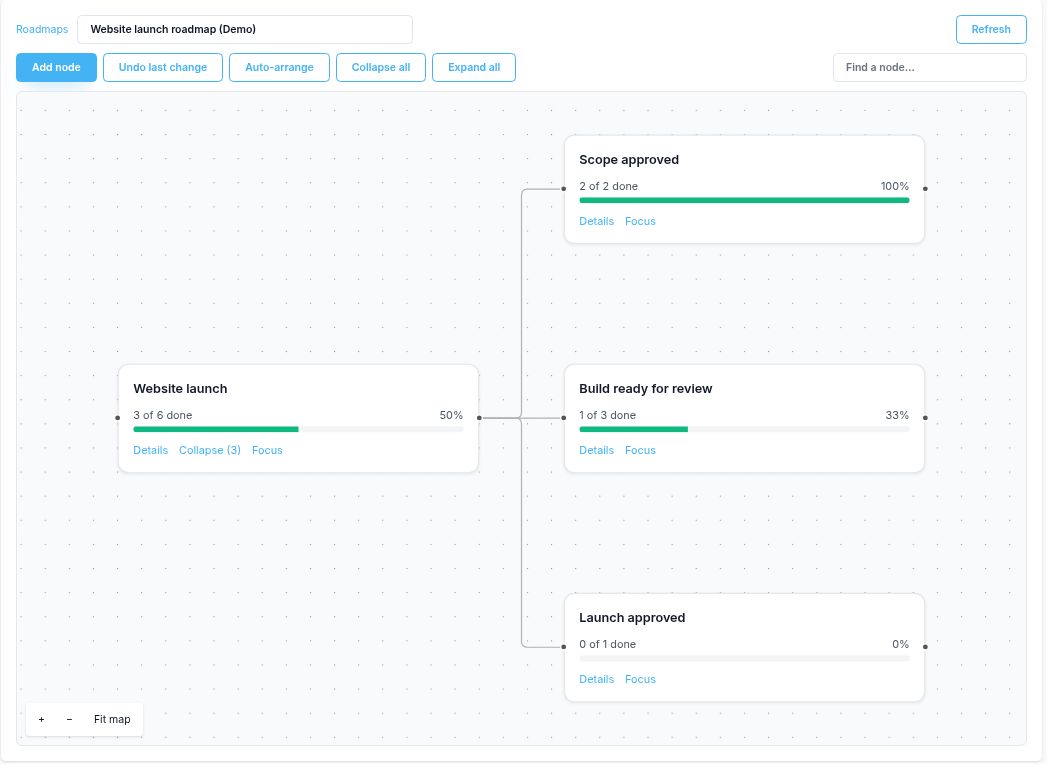
Website launch: six distinct tasks3 of 6 · 50%

The two scope tasks and Implement homepage start in the board’s done column. The remaining three tasks are open. John Doe is the example owner, written into the phase descriptions alongside the target dates and completion conditions.

Corcava website launch roadmap with Scope approved, Build ready for review and Launch approved branches, showing three of six tasks complete and 50 percent overall progress
The fictional launch plan starts at 50%: three completed tasks across its three branches. Each branch shows its own task count.

2. Create the roadmap and connect the existing work

  1. Open Work → Roadmaps, enter a Roadmap name, then choose Create roadmap.
  2. Select Add node. In the edit panel, name the root Website launch, describe the goal, leave Parent node as No parent, and Save.
  3. Select Add child to create Scope approved. Add its completion condition, owner and target date to Description (Markdown), then save. Add the other two phases under the same root.
  4. Click a phase’s title to open its edit panel. Choose the relevant Board, use Find tasks or labels if needed, and select its existing tasks under Linked tasks.
  5. Select Save, then use Auto-arrange and Fit map to review the whole plan.

Create the tasks on your task board before linking them. Linking a task keeps the roadmap connected to the same work item the team uses day to day. The Board selector helps you find those tasks; a roadmap can bring together work from several boards you can access.

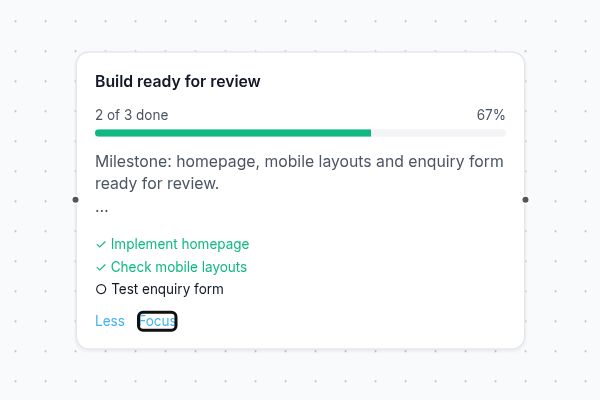
Roadmap node details linking Implement homepage, Check mobile layouts and Test enquiry form to the Build ready for review phase
Select Details to inspect the three tasks linked to Build ready for review. This focused view shows the phase after Check mobile layouts was completed.

Choose explicit tasks or a label that defines the scope

Direct task links work well for a fixed checklist like this six-task launch. Task labels are useful for a group whose membership changes: link a board label, and tasks carrying it—including tasks added later—contribute to the node’s progress. If you select several labels, tasks matching any of them are included.

Use labels with a clear meaning. Adding more tasks to a linked label can reduce the completion percentage even when no completed work has been reopened. A task selected directly and through a label still counts once within that node and its parent’s total.

3. Update a task and verify the roadmap changes

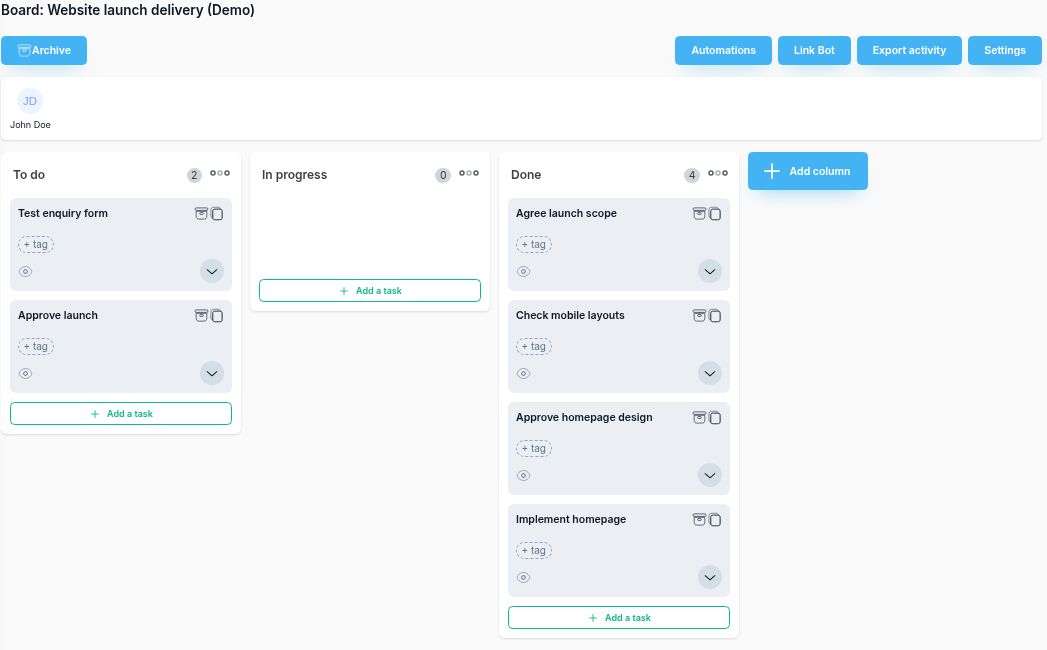
Complete Check mobile layouts on the task board and move it into a column configured as done. Return to the roadmap and select Refresh. The updated count should agree with the work you just completed.

Website launch demo task board after Check mobile layouts joins the completed tasks, leaving Test enquiry form and Approve launch unfinished
The task board is where the work changes. Roadmap completion follows tasks in done columns.
Roadmap progress before and after completing Check mobile layouts
NodeBeforeAfter
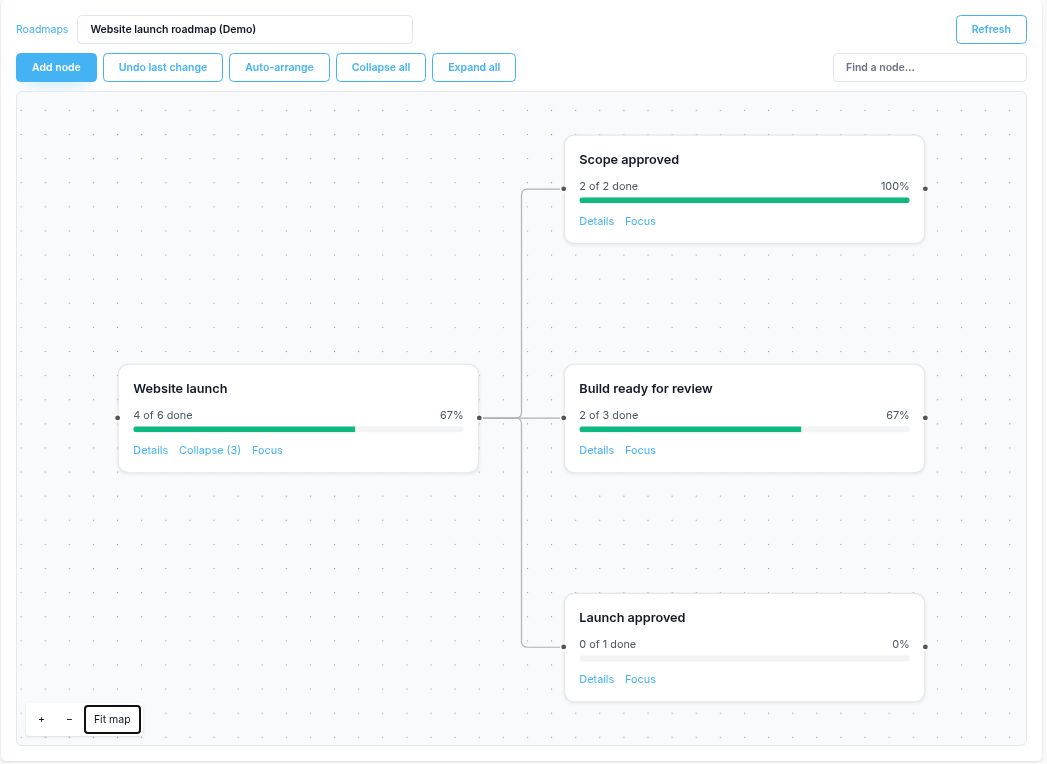
Build ready for review1 of 3 done · 33%2 of 3 done · 67%
Website launch3 of 6 done · 50%4 of 6 done · 67%
Updated Corcava roadmap showing Build ready for review at two of three tasks done and Website launch at four of six tasks done, both rounded to 67 percent
After Refresh, the branch and overall counts reflect the completed mobile check. Test enquiry form and Approve launch remain unfinished.

Progress = completed distinct tasks ÷ all distinct linked tasks.

The root counts tasks across itself and its children, with duplicates counted once. Here, 4 ÷ 6 is about 66.7%, displayed as 67%. Each task has equal weight; this is a task-completion measure, not an estimate that 67% of the hours or effort has been spent.

Calculate the parent from its task count rather than averaging its branch percentages. Counts include only tasks the viewer can access. A node with no accessible linked tasks shows No linked tasks, so an empty phase needs work linked before its progress is meaningful.

4. Review the dates, remaining work and decisions together

A progress bar gives you a starting point for a review. At 67%, this example still needs a tested enquiry form and launch approval. Those two tasks may determine whether the website can go live, regardless of how many smaller tasks are already complete.

  • Check the completion condition. Before closing a phase, confirm that its tasks cover the outcome you promised. Add missing work when the scope changes.
  • Review target dates and ownership. In this roadmap, these are Markdown notes. Update them when the plan changes; they do not create task deadlines or reminders.
  • Inspect a branch. Use Details to see task previews and open the underlying work. Use Focus or Collapse to make a busy map easier to review.
  • Save and refresh deliberately. Save edited descriptions and task links. Refresh before a review to check current progress. If another edit changes the map, refresh before continuing.
  • Write the decision or request. Record what is blocking the remaining work and what approval is needed in your project status report.

The status report is a separate update you prepare for its audience. Use it to explain schedule changes, risks and decisions alongside the roadmap’s task counts. For a client engagement, our lead-to-invoice workflow shows where project planning and delivery sit in the wider process.

Two more project roadmap examples

These are suggested planning structures, separate from the app demonstration above. Replace the phases and completion conditions with the ones your project needs.

Software release

Goal: release a defined feature set with a tested rollout and recovery plan.

Phases: scope agreed, release candidate tested, rollout approved.

Evidence: agreed acceptance criteria, completed test cases, rollout checklist and a named release decision.

A release label can group changing task scope. Review newly added tasks before interpreting a lower completion percentage.

Client onboarding

Goal: make the client ready for the first agreed delivery.

Phases: brief confirmed, access ready, first delivery agreed.

Evidence: approved brief, verified access, kickoff decisions and acceptance criteria for the first deliverable.

Direct task links suit a small checklist. Keep the external approval task open until that approval actually arrives.

Connect the project plan to the work being delivered

Explore Corcava’s project management features to organize tasks on boards and connect them to a visual roadmap. Start with one goal, a few meaningful phases and the tasks that make each phase complete.

Start free trial