Crypto agency kit / Client payments
Receive a USDT invoice payment with Binance
Take a client payment from “I’ve paid” to a settled invoice. This walkthrough follows a real 10 USDT transfer: publish the receiving instructions, collect the transaction hash, verify the Binance deposit and match it to the right invoice.
Verified on October 28, 2026. Northstar Studio (Demo) and Orbit Labs (Demo) are fictional business records. The 10 USDT receipt was real and was matched after Binance reported it credited.
The example
One invoice. One verified receipt.
- Invoice
- DEMO-CRYPTO-002
- Invoice currency
- USD 10.00
- Payment
- 10 USDT
- Network
- TRON (TRC-20)
- Receiving account
- Binance
- Final balance
- USD 0.00 due
The invoice explicitly agreed to 1 USDT per USD. That is this invoice’s settlement rate; Corcava does not infer a live exchange rate or convert the money.
Company / Before sharing
1. Prepare the receiving account and invoice
Connect your company’s Binance account in the workspace’s Integrations settings. Use the API configuration and IP allowlist instructions shown there. The connection must be able to retrieve the deposit address and deposit history for your selected asset and network. Receiving an invoice payment does not require making a withdrawal.
With permission to record invoice payments, open Finance → Invoices. Create a client invoice in USD, review its line items and dates, and put it in the sent/open state. Crypto payments must be enabled for that client.
Our example uses one “Website launch — demo payment” line for USD 10.00. Before choosing your own amount, check the exchange’s minimum deposit for the selected token and network.
Company / Receiving instructions
2. Publish the exact payment instructions
In Receive into an exchange, select the connected Binance account and USDT / TRON (TRC-20). Check that the agreed 1-token-per-USD settlement rate fits your invoice, then choose Publish payment instructions. Corcava retrieves the destination from the selected exchange connection.
Open the invoice’s Public Link and check the amount, token, network and destination before sharing it with the client. The page shows Payment due and the receiving instructions. For this example, the requested payment is 10.00 USDT.
The TRON QR contains the address only.
The payer must select USDT on TRON and enter the displayed amount in their sending wallet. Scanning the QR does not select the token, network or amount. Check all four on the wallet’s confirmation screen.
Exchange receiving instructions appear on the web invoice. Share the public invoice link when the payer needs those instructions; they are not included in its downloadable PDF.
Payer / Send and report
3. Send the payment, then submit its hash
- Use a wallet or exchange that can send USDT on TRON. Check the invoice’s receiving address against the destination in the sending app.
- Send the exact requested amount as an on-chain transfer. Cover sending fees separately so the intended amount reaches the receiving account.
- Copy the blockchain transaction hash from the completed sending action.
- Return to the public invoice, choose I’ve paid, paste the hash and submit it.
The page shows submission feedback, then a prominent Awaiting verification status with a spinner. It explains that the company must verify the transfer before recording payment. The invoice still has an outstanding balance at this point.
Keep the page open to see the result. It updates automatically after the company records the verified payment. If the submitted hash is wrong, use Update transaction hash while the instructions remain active.
A submitted hash is a report of a transfer. The company still needs to verify the receipt. Do not send the payment again just because the invoice says Awaiting verification.
Company / Verify and allocate
4. Check the deposit and match it to the invoice
Return to the company’s invoice view. The payer’s submitted hash appears in the receiving section and is available in the deposit-check field. Select Check deposits to read the latest records from the exchange.
- Find the deposit with the payer’s exact transaction hash. Check the intended account, token, network and amount.
- Wait for an eligible, fully credited receipt. In our test, Binance returned 10.00000000 USDT with status Credited.
- Choose Match to invoice on that receipt and confirm that it belongs to this invoice.
- Check the success message and invoice payment history after the match completes.
The match records the invoice payment. Simply checking the deposit list or receiving the payer’s hash does not allocate a receipt. Matching also does not transfer funds between exchange wallets or send a contractor payout.
Exchange deposits are checked when the company requests them. The public page’s automatic status refresh reads the invoice’s recorded state; it does not continuously query Binance or match deposits in the background.
Payer and company / The result
5. Confirm Paid and zero amount due
After matching our receipt, the public invoice changed to Paid without a reload. The green status panel confirmed payment, the payment instructions disappeared, and the invoice showed USD 10.00 paid and USD 0.00 due.
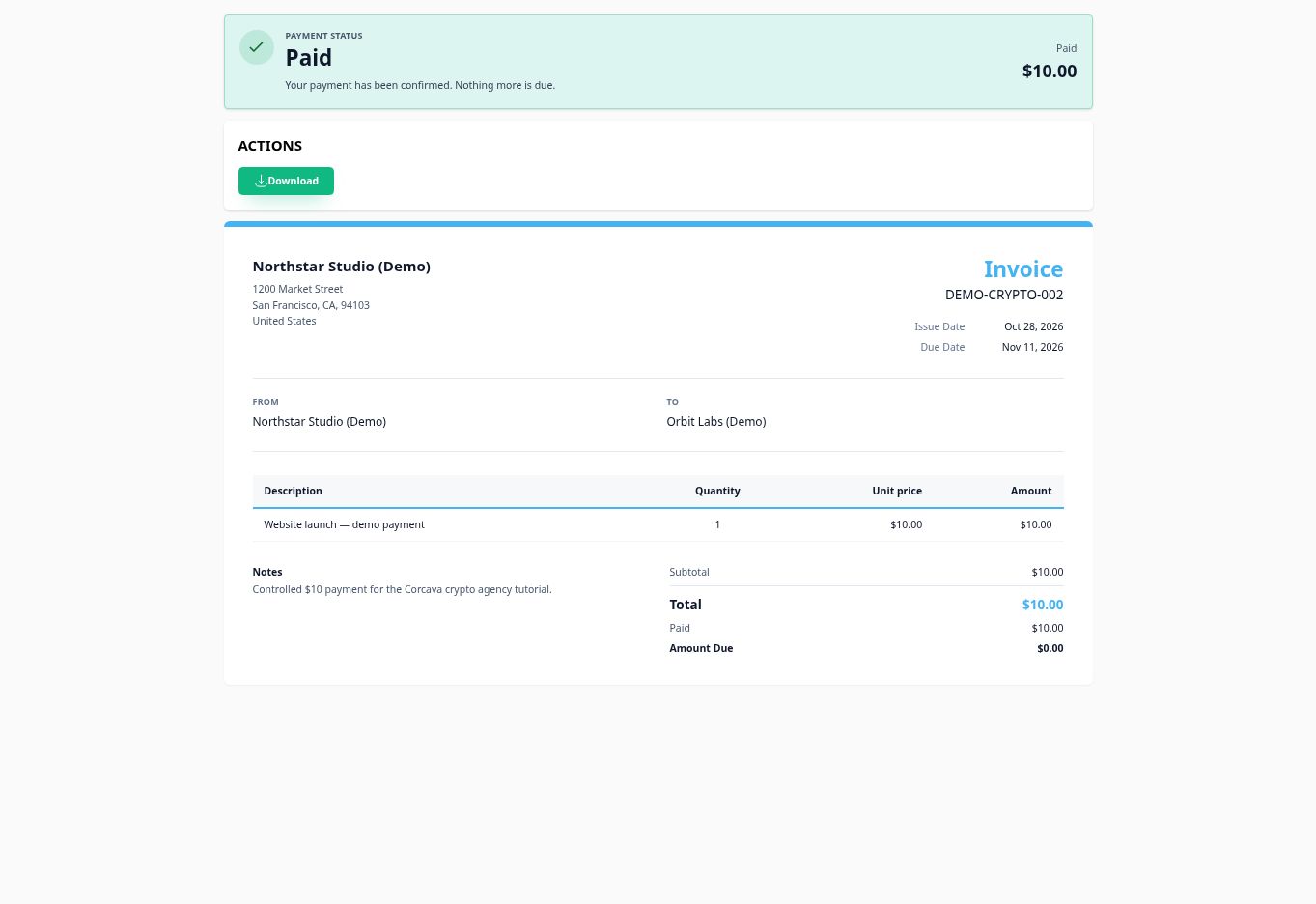
In the company view, confirm Closed / Paid, the zero outstanding balance and the corresponding payment-history entry. Closing an invoice manually is a separate action and does not establish that money arrived.
Company / Reconcile
6. Check the completed transaction and invoice link
Open Finance → Transactions and filter by the payment date or receiving account. Our match produced one Incoming Binance record for 10 USDT, with payment status Completed and matching status Linked.

Open the invoice link and compare the payment history. The full transaction record also retains the provider reference and blockchain hash for reconciliation. Avoid recording the same receipt again with a separate manual payment entry.
What each payment status means
| Status | What has happened | Next action |
|---|---|---|
| Payment due | The invoice has an outstanding balance. | Payer follows the published instructions. |
| Awaiting verification | The transaction hash has been submitted. Payment has not yet been recorded. | Company checks and matches the credited receipt. |
| Paid | Recorded payments cover the invoice total. | Check the receipt and linked transaction. No more is due. |
When the payment needs attention
The payer submitted a hash, but no deposit appears
Check the hash, receiving account, asset and network. The exchange may still be processing the transfer. Recheck later rather than asking for a second payment. The deposit search covers recent records after the invoice instructions were created; narrow by the hash if the result reports incomplete history.
The amount differs, or Match to invoice is unavailable
This flow requires one eligible on-chain receipt for the exact outstanding amount. Partial payments, overpayments, held deposits, internal exchange transfers and receipts with deposit deductions require review. Do not force the invoice to Paid or remove instructions just to bypass an unresolved transfer.
The transfer is confirmed on-chain, but the invoice is still waiting
For exchange receiving, the exchange must credit the deposit and the company must match that receipt to the invoice. A blockchain confirmation alone does not complete those steps.
The company matched the receipt, but the payer still sees the old status
Bring the invoice tab back into view and allow the status to refresh. If it remains unchanged, reload and compare the invoice number and amount due with the company’s payment history before taking another action.
Using a different payment route?
This walkthrough demonstrates Binance exchange receiving with USDT on TRON. Configured Bybit and OKX receiving accounts have their own deposit eligibility rules. Hosted ATLOS or PassimPay checkout and enabled direct TronLink checkout are separate payment routes with their own confirmation process.
Direct-wallet checkout does not use the Binance deposit-matching step. Follow the instructions shown by the selected checkout. See crypto invoicing and payment options for the broader setup.
Keep the client invoice and its receipt together
Create the invoice, share its payment instructions and give the client a clear payment status. Once the deposit is verified, keep the receipt linked to the same invoice in Corcava.
No credit card required. Crypto payments require workspace and receiving-account setup.